
Since Oracle Fusion SaaS does not provide direct access to the underlying database, BI Publisher reports are widely used for data extraction. BI Publisher data models can access Oracle Fusion application tables and expose the required data in formats such as XML, CSV, Excel or PDF.
Oracle Integration Cloud can then invoke the BI Publisher report, retrieve the generated file and send it to a downstream application.
This blog focuses mainly on the different ways in which OIC can invoke a BI Publisher report and why exportBulkData is generally the preferred option for large data extracts.
Typical Flow Using exportBulkData
A typical outbound data-extraction flow looks like this:
- Scheduler or source system
- OIC main integration
- Invoke BI Publisher through a custom ESS job
- Fusion generates the report output
- Fusion uploads the output to UCM
- Fusion raises an outbound event
- OIC callback integration
- Download the file from UCM
- Send the file to the target system
Options for Running the BI Publisher Report from OIC
There are two commonly used approaches.
Option 1: BI Publisher runReport
WSDL: https://<fusion-host>/xmlpserver/services/ExternalReportWSSService?WSDL
Operation: runReport
This operation runs the BI Publisher report synchronously.
OIC sends the report path, report parameters, output format and template details. BI Publisher executes the report and returns the generated output as a Base64-encoded value in the SOAP response.
Option 2: ERP Integration Service exportBulkData
WSDL: https://<fusion-host>/fscmService/ErpIntegrationService?WSDL
Operation: exportBulkData
This operation runs a custom ESS job asynchronously.
The ESS job executes the BI Publisher report. Once the report is completed, Fusion packages the output and log files, uploads them to UCM, and raises an outbound event.
The OIC callback integration receives the UCM document ID and uses it to download the generated file.
Oracle recommends the UCM and exportBulkData pattern for reports that are large or take longer to execute.
Why Prefer exportBulkData?
- The
runReportoperation is simple and useful for small reports. However, the complete report output is returned inside the synchronous SOAP response.
That leads to the following concerns:
- The integration must wait until the report finishes.
- The generated file becomes part of the OIC message payload.
The report output is returned as a Base64-encoded string. Base64 also increases the size of the original file during transmission.
For example, a 30 MB report file can become approximately 40 MB when Base64 encoded, even before the SOAP envelope and other XML elements are added.
- With
exportBulkData, the report content is not returned in the initial response. The report runs asynchronously, and the generated file is stored in UCM.
This makes exportBulkData more suitable when:
- The report contains a large number of records.
- The report execution time is unpredictable.
How to Use exportBulkData?
Prerequisites
Before calling exportBulkData, the following components should be available:
- A BI Publisher data model, and the report
- A custom ESS job configured for the BI Publisher report
The custom ESS job must be created specifically for the BI Publisher report.
Creating the Oracle ERP Cloud Connection
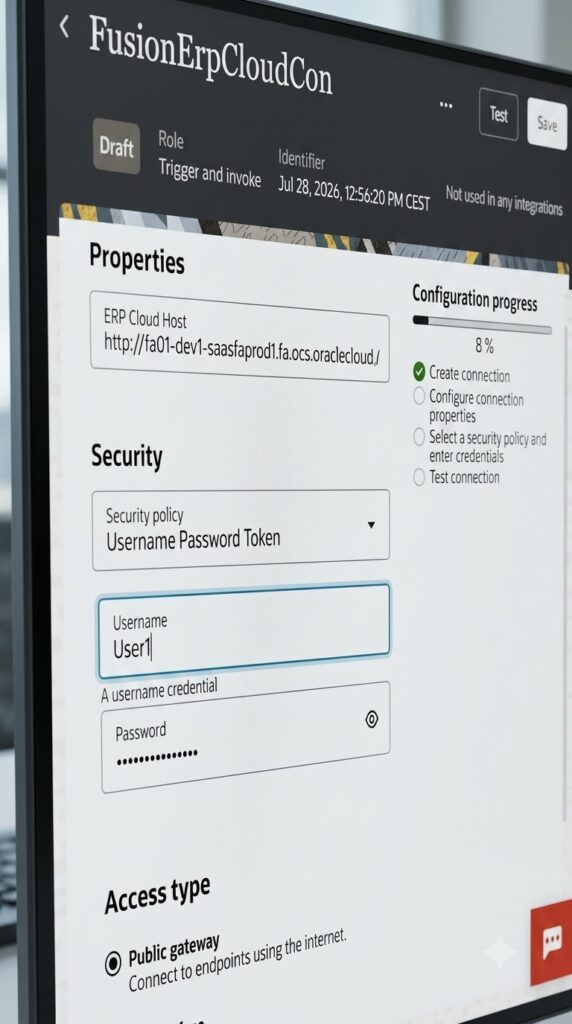
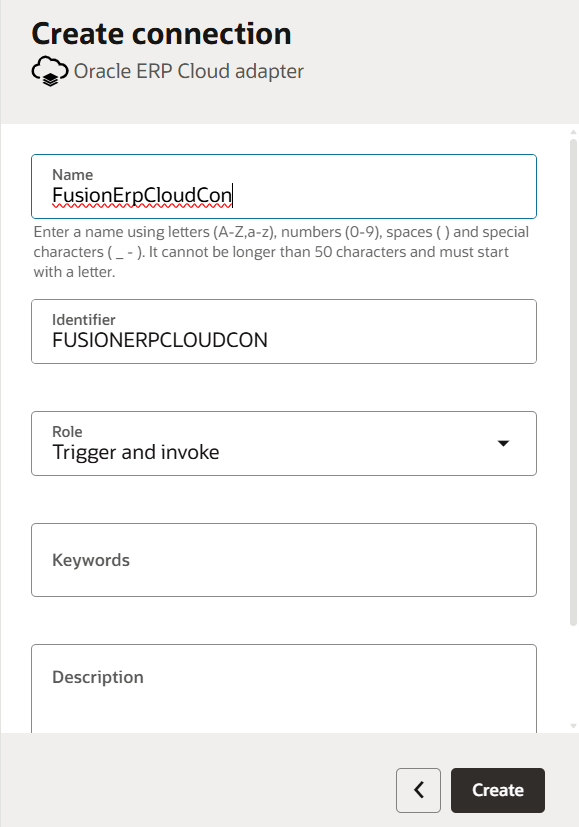
- Create an Oracle ERP Cloud Adapter connection in OIC (Name:
FusionErpCloudCon) - Configure the connection with the Oracle Fusion application URL and the required security policy.
- Test the connection and confirm that it is successful.
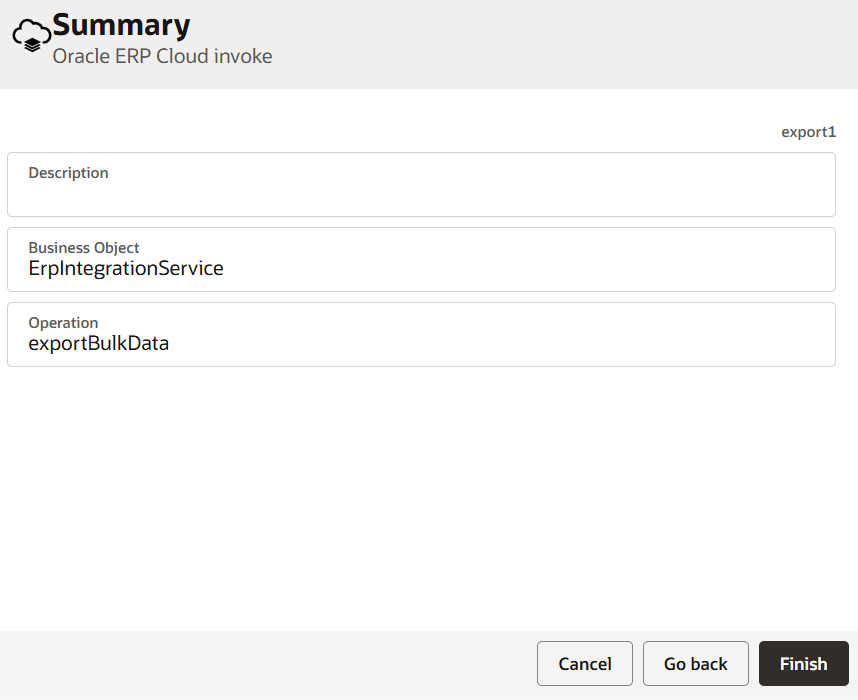
Create the Main OIC Integration and Invoke exportBulkData
- The integration can be: Schedule, Application integration
- OIC Integration – use the above connection in the flow to submit the BI Publisher execution
- Drag the
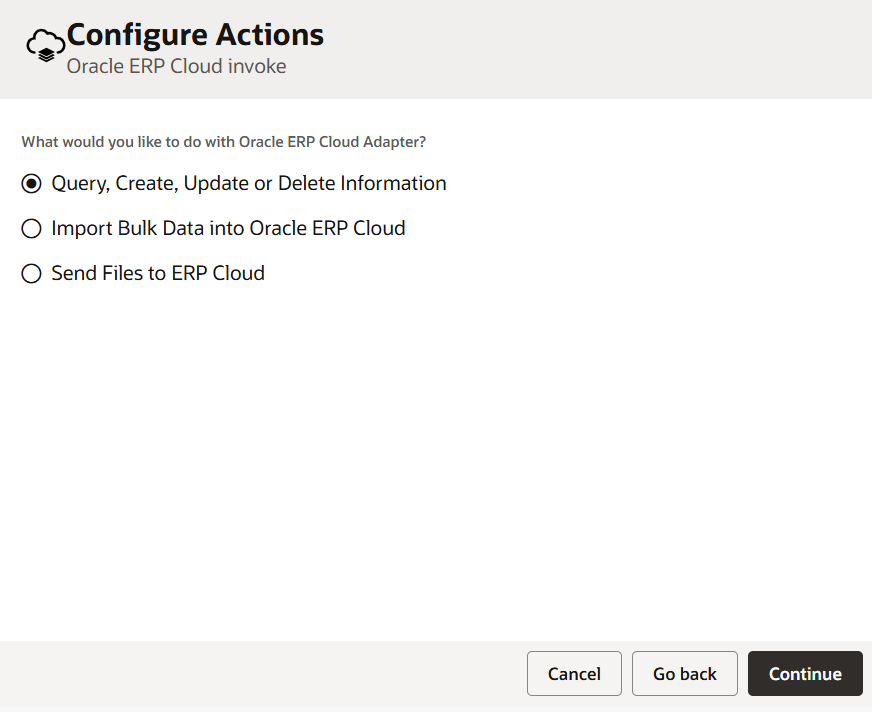
FusionErpCloudConconnection into the integration as an invoke. - Select the following option:
- Query, Create, Update or Delete Information
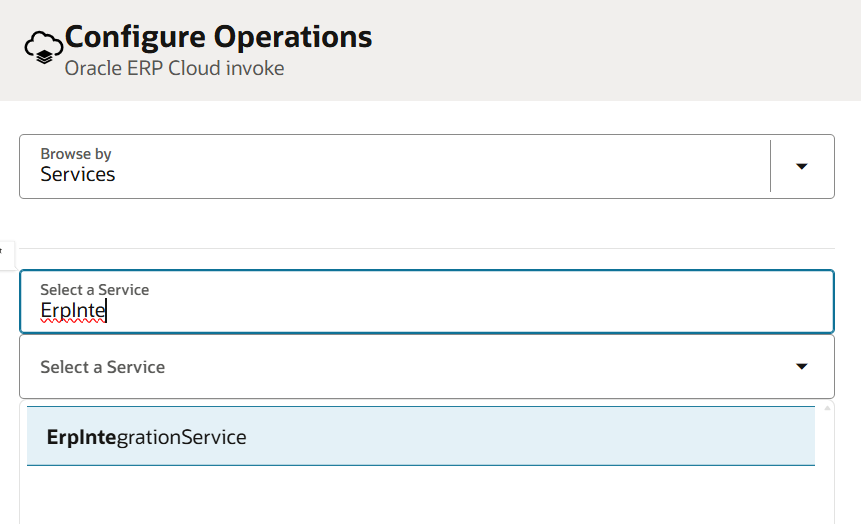
- Search for the ERP Integration Service and select:
ErpIntegrationService - Select the operation:
exportBulkData
Mapping the exportBulkData Request
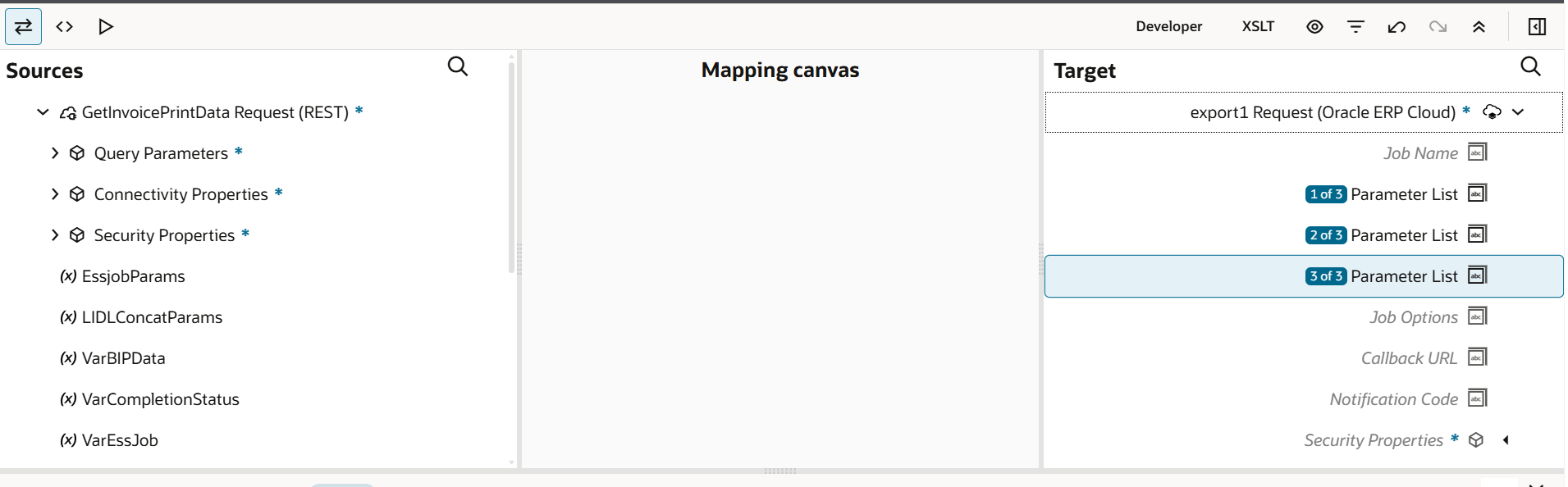
The important fields in the exportBulkData request are:
jobNameparameterListjobOptionscallbackURLnotificationCode
jobName
- The
jobNamecontains the ESS job package name and ESS job definition name, separated by a comma. - Format:
<ESS job package name>,<ESS job definition name> - Example:
/oracle/apps/ess/custom/financials,XX_SALES_ORDER_EXPORT - The values must match the custom ESS job created in Oracle Fusion.
parameterList
- The report parameters are passed as a comma-separated string.
- Example:
2026-07-01,2026-07-31,BU001 - The parameter order must match the order configured in the ESS job definition.
- For example: argument1 is From Date, argument2 is To Date, argument3 is Business Unit
- In that case, the value should be mapped as:
From Date,To Date,Business Unit - For an empty parameter, use the value expected by your report and ESS job configuration. Depending on the implementation, this may be an empty position in the parameter list or a value such as
#NULL. - It is important to test optional and null parameters carefully, especially when one of the values can contain a comma.
jobOptions
- To receive an event after the report is completed, set:
EnableEvent=Y - This is one of the most important mappings. Without this option, the ESS job may complete successfully, but the callback event may not be raised.
- Example:
jobOptions = EnableEvent=Y
callbackURL
When using the event-based callback pattern, a separate callback URL is normally not required. This field can be left empty or mapped according to the service requirements of the Fusion version being used. The event subscription in the callback integration handles the notification.
Response from exportBulkData
The initial exportBulkData response contains the ESS request ID. Example: <result>4185719</result>
The request ID confirms that the ESS job was submitted.
It does not mean that the report has already completed or that the output file is ready.
The report continues to execute asynchronously in Oracle Fusion.
You can use the request ID for:
- Tracking the job in Scheduled Processes
- Logging in OIC
- Troubleshooting
- Correlating the main and callback integrations
What Happens in Oracle Fusion?
After the exportBulkData request is submitted, Oracle Fusion performs the following steps:
- Submits the custom ESS job.
- Runs the BI Publisher report.
- Generates the report output.
- Collects the report output and log files.
- Compresses the files.
- Uploads the generated ZIP file to UCM.
- Raises the ERP Integration outbound event.
The callback event contains information such as:
- ESS request ID
- Job name
- Job status
- Summary status
- UCM document ID
- UCM document name
The document ID is required to download the generated file.
Creating the Callback OIC Integration
Create a separate OIC integration to receive the completion event.
The callback integration should be created as an event-triggered application integration.
Oracle supports an event-based callback for exportBulkData.
Add the Oracle ERP Cloud Connection as the Trigger
- Use the same Oracle ERP Cloud Adapter connection:
FusionErpCloudCon - Drag the connection into the integration as the trigger.
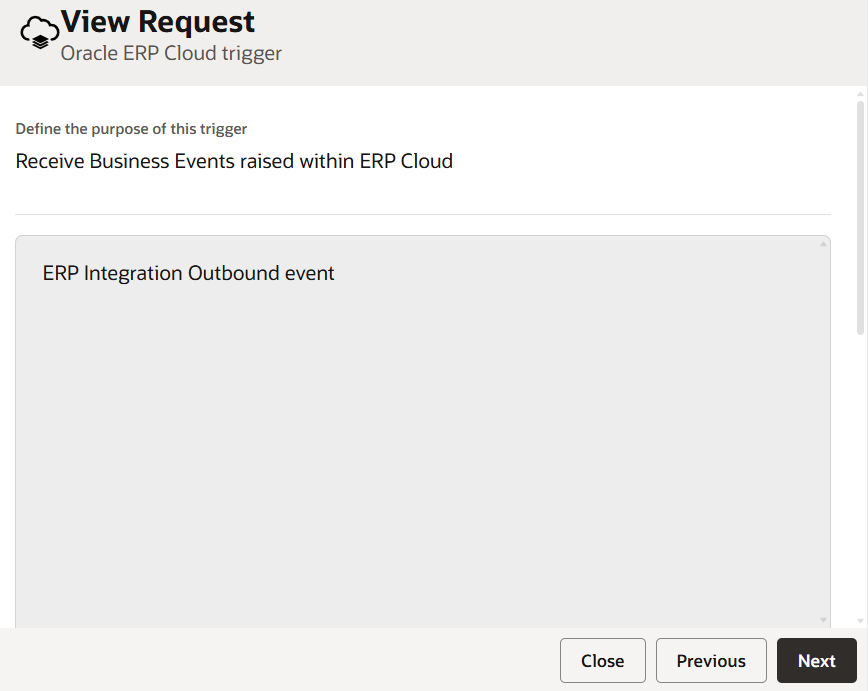
- Select: Receive Business Events raised within ERP Cloud
- Search for and select: ERP Integration Outbound Event
- Depending on the OIC and Fusion version, the event may also be displayed with a name related to:
ExportBulkDataEvent - Do not use the FBDI bulk-import callback option. That option is intended for
importBulkData, notexportBulkData.
Callback Payload
A callback payload typically contains values similar to the following:
{
  "JOBS": [
    {
      "JOBNAME": "XX Sales Order Export",
      "REQUESTID": "4185719",
      "STATUS": "SUCCEEDED",
      "DOCUMENTNAME": "ExportBulkData_XX_SALES_ORDER_EXPORT_4185719"
    }
  ],
  "SUMMARYSTATUS": "SUCCEEDED",
  "DOCUMENTID": "123456",
  "DOCUMENTNAME": "ExportBulkData_XX_SALES_ORDER_EXPORT_4185719"
}
The important values are:
SUMMARYSTATUSDOCUMENTIDDOCUMENTNAMEREQUESTID
Before downloading the file, check that:
SUMMARYSTATUS = SUCCEEDED- If the status is not successful, route the integration to the appropriate error-handling flow.
Downloading the Report from UCM
Once the callback is received, use the DOCUMENTID from the event payload to retrieve the generated ZIP file from UCM.
The file can be downloaded using the supported UCM or ERP Integration Service operation available in the environment.
After downloading the ZIP file:
- Write the file to the OIC stage area.
- Unzip the file.
- Identify the required report output.
- Ignore or separately store the ESS log files.
- Read the output file.
- Send it to the target application.
For large XML or CSV files, avoid reading the complete file into memory in one step. Use Stage File segmented processing where appropriate.
exportBulkData vs runReport
The following table summarises the main differences.
| Area | runReport | exportBulkData |
|---|---|---|
| Service | ExternalReportWSSService | ErpIntegrationService |
| Processing | Synchronous | Asynchronous |
| Report configuration | Direct BI Publisher report path | BI Publisher report registered as a custom ESS job |
| Data size limit | 10MB | 1GB |
| Initial response | Contains the report output | Contains the ESS request ID |
| Output transport | Base64 inside the SOAP response | ZIP file stored in UCM |
| Callback required | No | Yes |
| OIC waits for report completion | Yes | No |
| Suitable for small reports | Yes | Yes |
| Suitable for large reports | Not recommended | Recommended |
| Job visible in Scheduled Processes | Normally no | Yes |
| Error and log files | Must be handled separately | Included with the exported output |
| Recommended use | Small and quick reports | Scheduled or high-volume data extracts |
Conclusion
Both runReport and exportBulkData can be used to execute BI Publisher reports from Oracle Integration Cloud.
runReport is easier to configure and works well for small, quick reports. However, the report output is returned synchronously as Base64 content, making it less suitable for large or long-running extracts. The usual limit is 10MB.
exportBulkData runs the report through a custom ESS job, stores the output in UCM, and notifies OIC through an outbound event. This makes it the preferred approach for scheduled, high-volume, and production-grade outbound data integrations. The usual limit is 1GB.
The final choice should not be based only on the current report size. It should also consider future data growth, execution time, monitoring, restart handling, and overall integration reliability.